
Step-by-step guidance
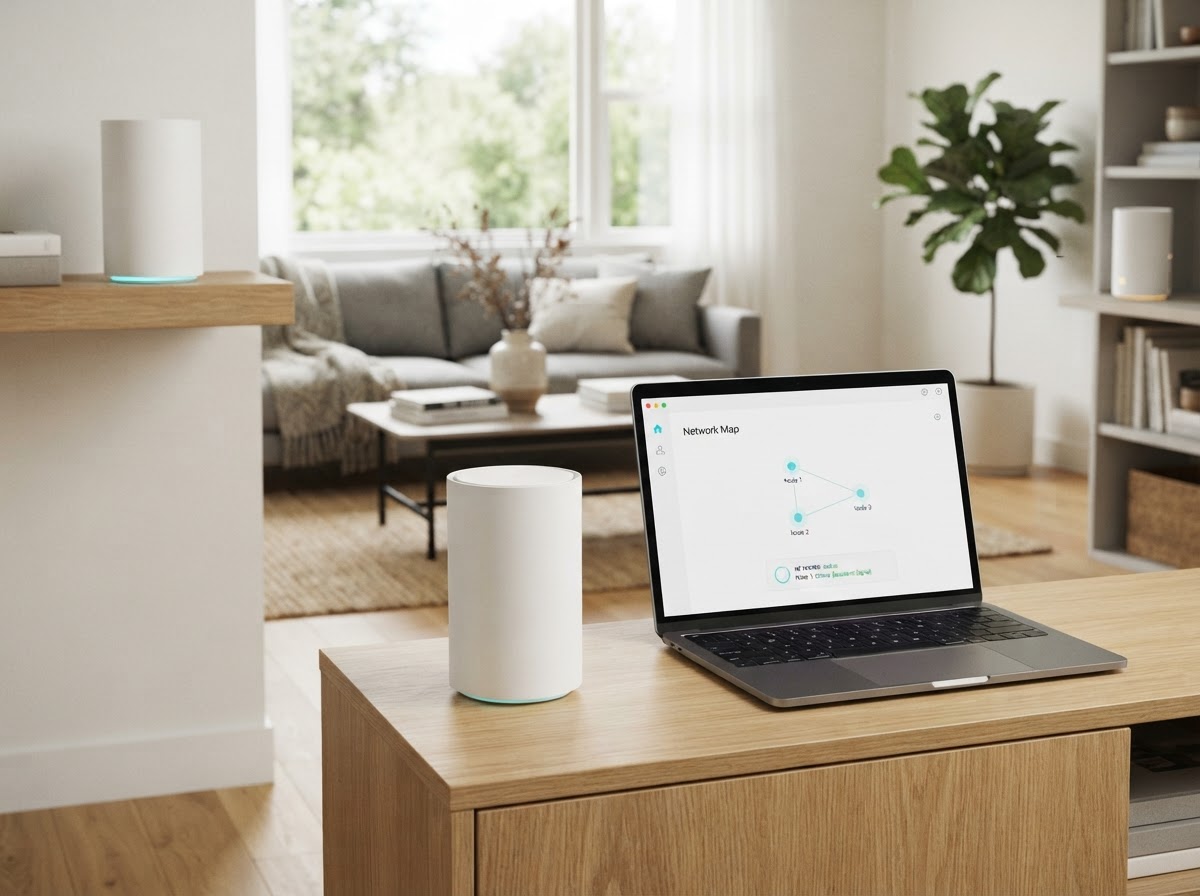
The Deco XE75 Pro is a WiFi 6E mesh system managed through the Deco app. If setup or WiFi is not working as expected, check the phone, app, main unit, and internet connection in order. Menu names, available bands, and LED behavior can vary by hardware version, region, and app release, so use the guide for your exact unit when a detail differs.
If the app cannot find the main XE75 Pro
- Check the model and hardware version printed on the unit or its label, then choose the matching product in the Deco app.
- Confirm the phone is connected to the internet and allow the app’s requested local network or nearby-device permissions.
- Connect the main Deco to the modem or provider gateway with the supplied Ethernet cable, then power the equipment on and give it time to start.
- Wait for the Deco’s setup-ready indicator described in the model guide before continuing in the app. The XE75 Pro guide identifies pulsing blue as ready for setup.
- If the app still cannot discover the unit, close and reopen the app, check that it is up to date, and follow the in-app recovery instructions.
If the unit has already been configured, avoid factory-resetting it just to make the app find it. First sign in using the TP-Link account associated with the existing network and select the correct network.
If internet setup stops at the connection test
Check that the modem or gateway has service and that the Ethernet cable is firmly seated at both ends. If practical, test the internet connection using the provider’s recommended setup. In the Deco app, use the connection type and any provider-specific settings supplied by your internet service provider. Do not guess a PPPoE password or VLAN details; ask the provider if you do not know them.
If a satellite unit is offline or coverage is weak
Check that the satellite has power and is within a useful wireless range of the main unit. Temporarily move it closer to the main Deco, wait for it to reconnect, then compare the app’s status. Test more than one device and more than one room to distinguish a weak mesh link from an issue on a single client. Keep units in open positions rather than inside cabinets or behind large obstructions.
Before resetting
A restart and a factory reset are different: a reset can erase network settings and require setup again. Try a normal restart and the checks above first. If a reset is necessary, follow the instructions for your XE75 Pro hardware version. You can find model-specific downloads and manuals on the official Deco XE75 Pro support page.
For general help, see our Deco mesh setup guide or slow WiFi troubleshooting guide. Do not share account passwords or verification codes in a support request.
For further help, explore our independent TP Link Deco support services or contact our team with a non-sensitive description of the issue. Do not send passwords or verification codes.