
Step-by-step guidance
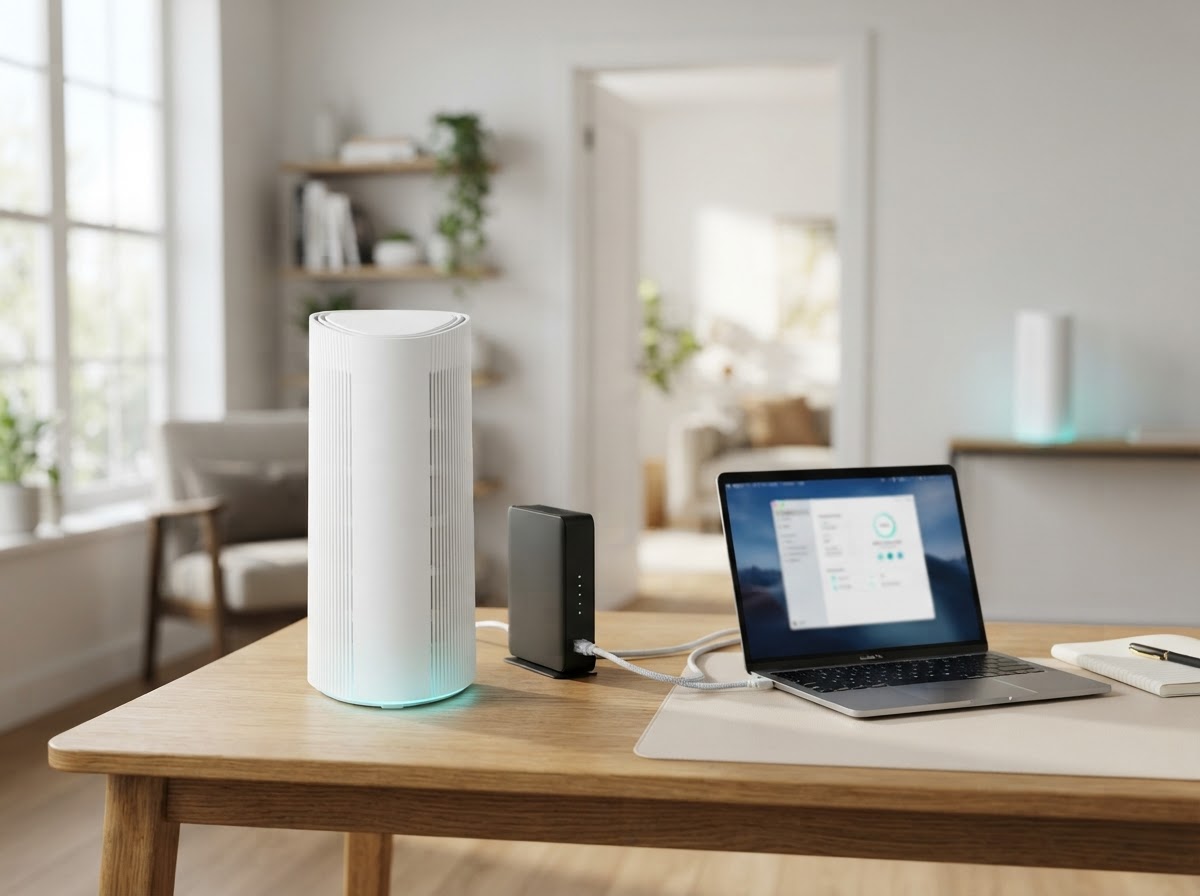
The Deco XE200 is configured through the Deco app. A typical setup connects one XE200 to the modem or internet gateway, creates a WiFi network, and then adds other units if they are part of the system. The XE200 manual and the app for your hardware version should be your reference if a screen or indicator differs from these general steps.
Prepare for setup
Install the Deco app from your device’s official app store, then sign in to the TP-Link account that will manage the network. Check the XE200 model and hardware version on its label. Make sure the modem is online and have the Ethernet cable and power adapter ready. Ask your internet provider for any required account details or special connection settings before setup.
Set up the main XE200
- In the Deco app, choose the option to create a network and select the XE200 model.
- Connect the main unit to your modem or gateway with Ethernet. Follow your provider’s instructions about powering the modem off and back on.
- Power on the XE200 and wait for the setup-ready indicator specified in its manual. The XE200 user guide describes a pulsing blue light as ready for setup; indicator states can vary for other activity.
- Let the app discover the Deco and follow its prompts to select the internet connection type.
- Enter provider-supplied details only when requested. If you are unsure about PPPoE or VLAN settings, contact your ISP before proceeding.
- Create a WiFi network name and password, then reconnect your phone to the network when prompted.
If setup or connection fails
The app does not find the XE200: Check the phone’s WiFi and the permissions requested by the app. Confirm that you selected XE200, wait for the unit to reach its setup-ready state, then close and reopen the app. A unit already attached to an existing network may require access through the account that manages that network.
The internet test stops or fails: Confirm that the modem has service, check both ends of the Ethernet cable, and use the connection type supplied by your ISP. If the provider’s connection is down, the app cannot complete an internet test even if the Deco is powered correctly.
A second XE200 has weak or no mesh connection: Check power and move the additional unit closer to the main Deco for a test. If it comes online nearby, adjust placement gradually so it stays within a reliable link range. Avoid assuming that placing a node in the dead zone will extend a strong signal there.
The XE200 includes different Ethernet port types; connect the modem using the port and arrangement shown in the guide for your specific hardware and network. Do not factory-reset a working mesh unless necessary, because a reset can remove configuration. See the official Deco XE200 support downloads and manual or our general Deco setup guide for more context.
For further help, explore our independent TP Link Deco support services or contact our team with a non-sensitive description of the issue. Do not send passwords or verification codes.