Step-by-step guidance
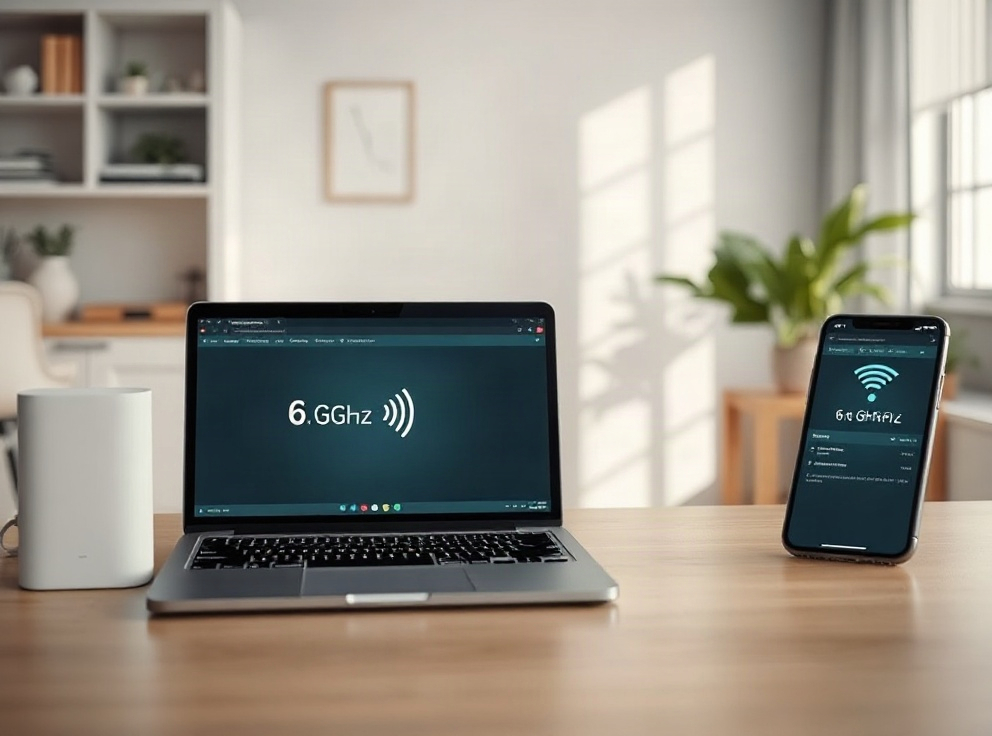
If a phone or laptop cannot find the 6 GHz WiFi network from a Deco XE75 Pro, first check the client device. WiFi 6E mesh equipment can use 6 GHz, but a device also needs compatible WiFi 6E hardware and regional approval for that band. Older devices can still connect on the 2.4 GHz or 5 GHz bands; they simply cannot join 6 GHz.
Check whether the client can use 6 GHz
Look up the exact laptop wireless adapter or phone model on its manufacturer’s support page. Search its specifications for WiFi 6E or 6 GHz support; a generic “WiFi 6” label by itself does not confirm 6 GHz capability. Also check whether your region permits 6 GHz operation. Availability and options can vary by location and firmware.
Check the Deco app and network settings
- Update the Deco app from your device’s official app store, then reopen it and select the correct network.
- Review the app’s WiFi settings and confirm that the 6 GHz band is available and enabled for your hardware and region.
- If your app offers a separate 6 GHz network name, you can create one temporarily to make the band easier to identify. Options and menu names differ by app release, so follow the current on-screen guidance.
- On the phone or computer, refresh its WiFi list and move nearer to the main Deco for a test.
A separate network name is only a diagnostic convenience; it does not make a non-compatible device support 6 GHz. Changing names or security settings may require devices to reconnect, so note your existing settings before making changes.
Update the device’s wireless software
If the client supports WiFi 6E but still does not show the network, install a current wireless adapter driver or operating-system update from the device or adapter manufacturer’s official site. Restart the client afterward and check again. If only one client has the problem while other compatible devices can connect, focus on that client’s adapter, driver, and regional settings.
What to check if the network is still missing
Restart the Deco network from the app if that option is available, then allow each unit time to come back online. Check the app for a firmware update and review its release notes before installing. Avoid factory-resetting the mesh simply to make a band appear; a reset can remove saved network settings.
For model-specific manuals, visit the official XE75 Pro support page. TP-Link also explains WiFi 6E Deco band and client compatibility and general 6 GHz connection checks. This accompanying image is an illustrative home-network scene and may not depict the exact XE75 Pro hardware.
For further help, explore our independent TP Link Deco support services or contact our team with a non-sensitive description of the issue. Do not send passwords or verification codes.