
Step-by-step guidance
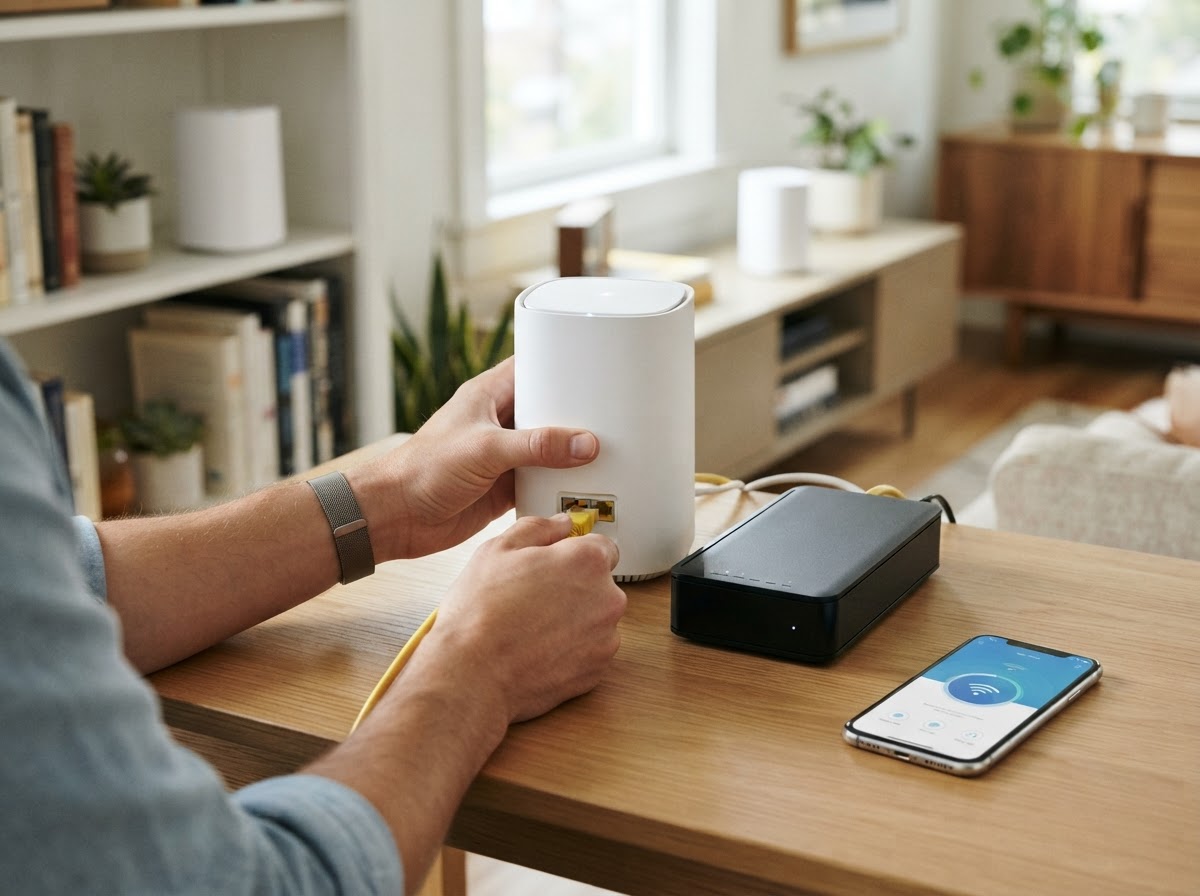
The Deco XE5300 is set up using the Deco app. The app walks you through adding the main unit, choosing internet settings, and bringing additional Decos into the mesh. Available screens can differ between hardware versions and app releases, so have the model label handy and follow the prompts for your exact device.
Prepare your XE5300 network
- Install or update the official Deco app on your phone or tablet.
- Sign in to the TP-Link account that should own or manage the network.
- Find the XE5300 model and hardware version on the product label.
- Have an Ethernet cable and the modem or internet gateway available.
- If your provider uses special connection details, such as PPPoE credentials or a VLAN ID, obtain the correct information from the provider rather than guessing.
Set up the main Deco
- In the app, begin creating a network and select the XE5300 model that matches your unit.
- Connect one Deco to the modem or gateway using Ethernet. If your provider instructs you to restart the modem before connecting a new router, follow that order.
- Power on the modem and Deco, then wait until the main unit is ready for setup. The XE5300 user guide describes a pulsing blue LED as the setup-ready state.
- Follow the app to choose an internet connection type and enter provider-supplied details if requested.
- Create your WiFi network name and password, then connect your phone to the new network when prompted.
- Wait for the app to confirm setup before moving or adding other units.
Add the other XE5300 units
If your package includes additional units, plug them in within a reasonable range of the main Deco and use the app’s add-a-Deco flow if they do not join automatically. Wait for the app to show that each unit is online before deciding it needs to be reset. If a unit cannot be found, check its power, bring it closer to the main Deco for initial pairing, and retry the app instructions.
Common setup problems
The app cannot find the main Deco: Check phone permissions requested by the app, confirm the selected model, and wait for the unit’s setup-ready state. If the unit was previously configured, sign in with the account associated with its existing network before considering a reset.
The internet test fails: Check the cable and modem status. If the provider’s service works when tested as they recommend, confirm the connection type and any required settings with the ISP.
A satellite will not connect: Place it closer to the main unit, restart the app, and allow time for the mesh to establish its connection. Avoid placing nodes behind dense obstructions.
A factory reset removes configuration and should not be the first troubleshooting step. For hardware-specific instructions and firmware, check the official XE5300 support downloads. For more general help, browse our mesh setup guidance.
For further help, explore our independent TP Link Deco support services or contact our team with a non-sensitive description of the issue. Do not send passwords or verification codes.